Skip to content
Close
hero_tn

Meeting Control

Eyeson provides centralized management of video sessions, allowing administrators to create and configure rooms and add or remove participants in real time. The platform ensures consistent media delivery while all users can interact, speak, and share content during the session.

Meeting Room

Eyeson Workflow

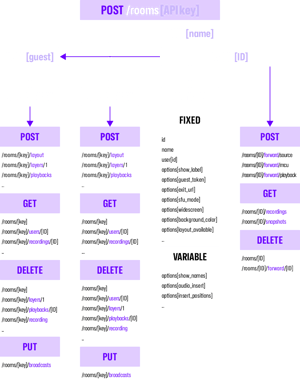
The Eyeson meeting room is created using an API key and serves as the central entry point for all session interactions. It defines core parameters such as name, user identity, and default options, while users are registered within the room and assigned access keys that determine their permissions.

The system separates fixed configuration from dynamic options. Fixed parameters are defined in the initial REST call of the session and establish the baseline behavior of the room. Variable options extend this configuration and define which features can be adjusted during the session.

Once the room is active, developers can modify these options in real time through API endpoints. This includes managing users, adjusting layouts, adding overlays or layers, and handling media such as playbacks and recordings. Actions can be performed on the room level using the API key or on the session level using the access key and room ID, enabling flexible and continuous control during live sessions.

diagram
Why Eyeson

Multi-Party Conferencing

Eyeson One View is designed around the Multipoint Control Unit (MCU) with additional features. It processes and merges all incoming data streams, such as video, audio, metadata, and other video sources, into a single unified video stream. This includes the participants' microphones and webcam feeds.

The resulting stream dynamically adapts its quality to each participant's network conditions. Because the stream is centrally composed, every participant receives identical visual and audio content. This ensures consistent situational awareness across distributed teams and simplifies session management.

In 3GPP Mission Critical Services (MCX) standards the system only needs to initiate video clients. The Eyeson Gateway then connects to the clients and delivers a managed video stream. Eyeson controls its own participant access and permissions while users from the MCX system remain outside of Eyeson's direct management. 
defense_meeting

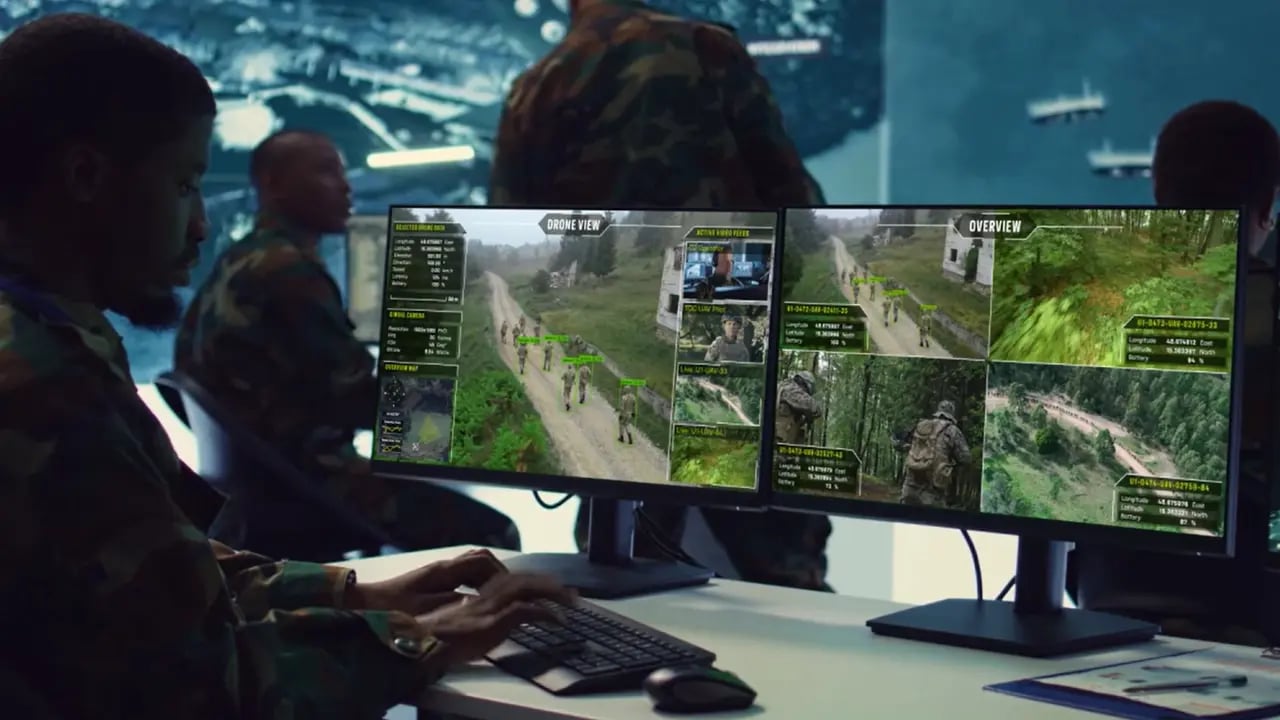
Additional video sources such as drones IP cameras or bodycams can also be added to Eyeson sessions. These sources may provide live feeds or playback content that becomes part of the unified stream. External experts can join Eyeson sessions to contribute video or audio while MCX controls which of its users see the unified stream

The Core:
Eyeson MCU+

The Eyeson MCU+ is a powerful, cloud-agnostic server designed for scalable and efficient real-time media processing. It supports comprehensive video conferencing features and seamlessly integrates custom data and media from any sources. With automatic scaling to handle increased demand, it ensures robust and low-latency performance, ideal for dynamic video solutions.

Eyeson API

Build & Control

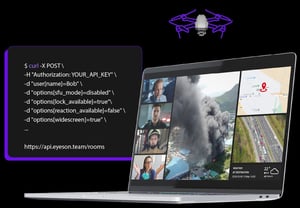
Easily start and manage video meetings with the Eyeson API. Quickly initialize meetings, manage participants, adjust layouts, and control media streams in real-time. The API also supports advanced features like screen sharing, recording, and custom data overlays, offering developers simple tools to enhance and tailor video conferencing solutions.

api-call-control-curl-command
Start Session

Initiate a Meeting Room

Meeting rooms are the core component for organizing video sessions in Eyeson. A room is created through an API key request and acts as a dedicated space where participants can join and interact. Each room is assigned a unique identifier, and every user receives an individual access key that defines their permissions and grants entry to the session.
  • Assign unique identifiers (IDs) to enable targeted manipulation
  • Configure room-level parameters to control behavior and functionality
  • Enable or restrict additional features based on incident
  • Fine-tune minor visual elements to polish the interface
Start Meeting Example
curl -X POST \
  -H "Authorization: $API_KEY" \
  -d "id=$Custom_Room_ID" \
  -d "name=$Custom_Room_Name" \
  -d "user[id]=john.doe@mail.com"
  -d "user[name]=John Doe" \ #required
  -d "options[sfu_mode]=disabled" \
  -d "options[widescreen]=true" \
  "https://api.eyeson.team/rooms"
Example Response
{
  "access_key": "VgoCcMUSQQ6h4zwpEfBuo0rZ",
  "ready": false,
  "locked": false,
  "room": {
  "id": "Custom_Room_ID",
    "name": "Custom_Room_Name",
    "ready": false,
    "started_at": "2026-03-13T15:50:21.347Z",
    "shutdown": false,
    "guest_token": "77Ua2Abc8ftGDNVzsixwvbcZ"
  },
  "team": {
    "name": "Demo"
  },
  "user": {
    "id": "john.doe@mail.com",
    "room_id": "Custom_Room_ID",
    "name": "John Doe",
    "avatar": null,
    "guest": false,
    "blocked": false,
    "ready": false
  },
  "links": {
    "self": "https://api.eyeson.team/rooms/VgoCcMUSQQ6h4zwpEfBuo0rZ",
    "gui": "https://app.eyeson.team/?VgoCcMUSQQ6h4zwpEfBuo0rZ",
    "guest_join": "https://app.eyeson.team/?guest=77Ua2Abc8ftGDNVzsixwvbcZ",
    "websocket": "https://api.eyeson.team/rt?access_key=VgoCcMUSQQ6h4zwpEfBuo0rZ"
  },
  "options": {
    "show_names": true,
    "show_label": true,
    "exit_url": null,
    "recording_available": true,
    "broadcast_available": true,
    "layout_available": true,
    "layout": "auto",
    "reaction_available": true,
    "suggest_guest_names": true,
    "lock_available": false,
    "kick_available": true,
    "sfu_mode": "disabled",
    "layout_users": null,
    "layout_name": null,
    "layout_map": null,
    "voice_activation": false,
    "custom_fields": {},
    "widescreen": true,
    "background_color": "#121212"
  },
  "playbacks": [],
  "presentation": null,
  "broadcasts": [],
  "recording": null,
  "snapshots": [],
  "waiting_list": [],
  "signaling": {
    "type": "sepp",
    "options": {
      "client_id": "67d2febd7a286f59a7643886",
      "conf_id": "67d2febd7a286f59a7643885",
      "auth_token": "eyJhbGciOiJFUzM4NCJ9.eyJpc3MiOiJleWVzb24tY29tYXBpIiwiY2xpZW50X2lkIjoiNjdkMmZlYmQ3YTI4NmY1OWE3NjQzODg2IiwiZXhwIjoxNzQxODg0NjIxLCJjb25mX2lkIjoiNjdkMmZlYmQ3YTI4NmY1OWE3NjQzODg1IiwiYXVkIjoiZXllc29uLXNlcHAifQ.fgRULd2AY85yNvFp3SDqo60ZLoYGn59gmOD3zw7ghzlMduq3C6SddgUq501TwulDWBt1Mubw53veH6tdF37b6snzpQGufQcmBrR2m6HNrGrTijL44NyRjcrbc7TjRKZo",
      "endpoint": "wss://sig.eyeson.com/call",
      "stun_servers": [
        "stun:nuts.eyeson.com:3478"
      ],
      "turn_servers": [
        {
          "urls": [
            "turn:nuts.eyeson.com:3478",
            "turn:nuts.eyeson.com:3478?transport=tcp",
            "turns:nuts.eyeson.com:443?transport=tcp"
          ],
          "username": "1741967421:67d2febd7a286f59a7643886",
          "password": "jTF47lTP9hqOIWLRfeik2SSZjnY="
        }
      ]
    }
  }
}
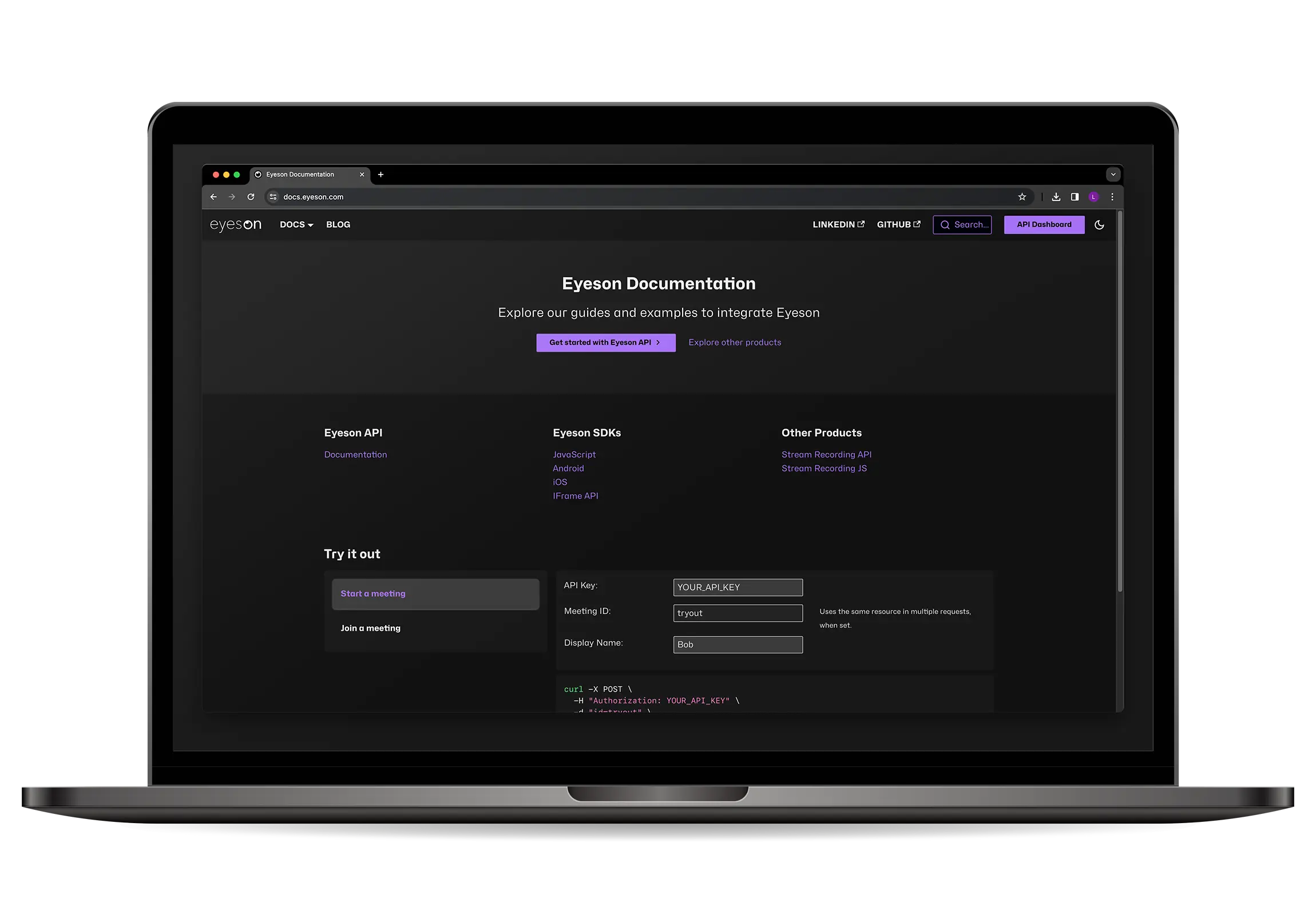
To begin your session, you can configure and start an Eyeson room with various settings for participants, layout, and security. For detailed instructions on creating and launching a room, visit the Eyeson Documentation on starting an Eyeson room, which guides you through each step clearly. 
Users & Guests

Register Participants

To register additional users, an active meeting room is required. The first user, created when the room is initiated, must have the GUI link open in a browser to establish the session. Each user is automatically assigned a unique identifier. Alternatively, developers can implement a custom naming scheme for easier reference.

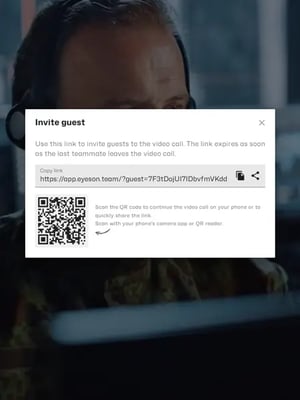
Using the guest token obtained during room initialization, developers can create any number of guest users. Guest users have limited permissions compared to regular users and are typically intended to provide a way for participants to join a meeting without creating a full account in the system.

Register Participants to a Room
curl -X POST \
  -H "Authorization: $API_KEY" \
  -d "id=$Same_Room_ID" \ #same id as first user
  -d "user[id]=jane.doe@mail.com"
  -d "user[name]=Jane Doe" \ #required
  "https://api.eyeson.team/rooms"
Register Guest Participant
curl -X POST \
  -d "id=guest.doe@mail.com"
  -d "name=Guest Doe" \ #required
  "https://api.eyeson.team/guests/$GUEST_TOKEN" #found in the reponse of the room init

You can also configure user registration settings to control how participants join your meetings. For a full overview of these options and step-by-step instructions, visit the Eyeson Documentation on user registration, which provides detailed guidance for managing access and participant workflows.

Room Options

Custom Settings

When creating a meeting room on Eyeson, you can set up various configurations before participants join. These settings define the environment and capabilities of the room, including layout, recording, broadcasting, and user management. Some options are flexible and can be modified during a live session, while others remain fixed once the room starts, ensuring consistent functionality.
  • Fixed options include room identifications, video stream format, feature availabilities, feature behaviors, etc.
  • Options that can be adjusted during the session are also available
  • Room management tools such as locking, kicking users, etc.
  • Most important options are SFU mode and widescreen mode
Initial Options
curl -X POST \
  -H "Authorization: $API_KEY" \
  -d "user[name]=John Doe" \ #required
  -d "id=$Custom_Room_ID" \
  -d "options[recording_available]=true" \
  -d "options[guest_token_available]=true"\
  -d "options[lock_available]=true" \
  -d "options[kick_available]=true" \
  -d "options[sfu_mode]=disabled" \
  -d "options[widescreen]=true" \
  "https://api.eyeson.team/rooms"
Programmable Options
curl -X POST \
  -d "layout=auto" \
  -d "show_names=true" \
  -d "audio_insert=enabled" \
  -d "audio_insert_position[x]=20" \
  -d "audio_insert_position[y]=670" \
  "https://api.eyeson.team/rooms/$ACCESS_KEY/layout"

There are many more options available when initializing a meeting room, allowing you to customize layouts, security, and participant settings. For a complete overview and detailed guidance, check the Eyeson Documentation.

Popular Features

Eyeson provides a comprehensive suite of video meeting room capabilities designed to support flexible and scalable integrations. Its API documentation offers in-depth coverage of all available endpoints, including request parameters, response schemas, and configuration options. This enables developers to fully customize session behavior, such as room settings, layouts, broadcasting, and branding, to meet specific application requirements.
rec
Recording
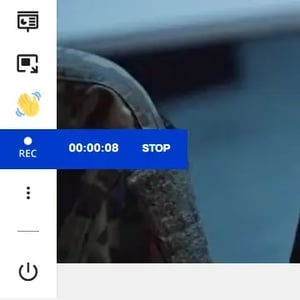
Entire video meetings can be recorded or captured as snapshots, with the resulting videos and images stored for later access.
live
Broadcasting
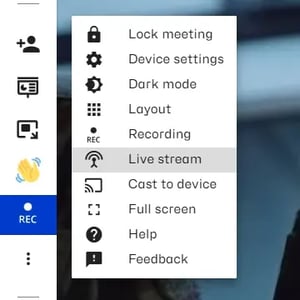
Eyeson One View merges all incoming data, audio and video into a single video stream, which can then be broadcast to other platforms.
virtual
Virtual Background
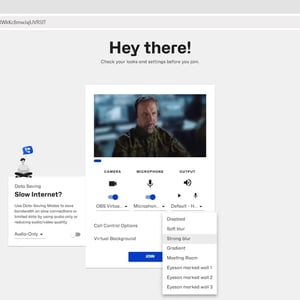
On the Preview Page, users can select or upload a virtual background image to obscure their surroundings and improve visual appearance.
guest
Guest Join
Guests can join a meeting without creating an eyeson account.
lock
Lock Meeting
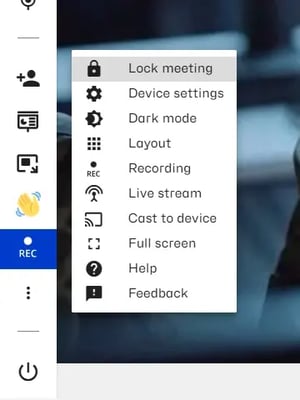
No additional participants can join the video meeting.
custom
Custom Fields
The Prebuilt UI includes multiple custom fields that can be set before initializing a meeting. Examples include the GIF panel, chat panel, logo placement, virtual background settings, and more.

Developer Shortcuts

eyeson-docs-web
Eyeson Documentation
Nothing is better than some code & documentation
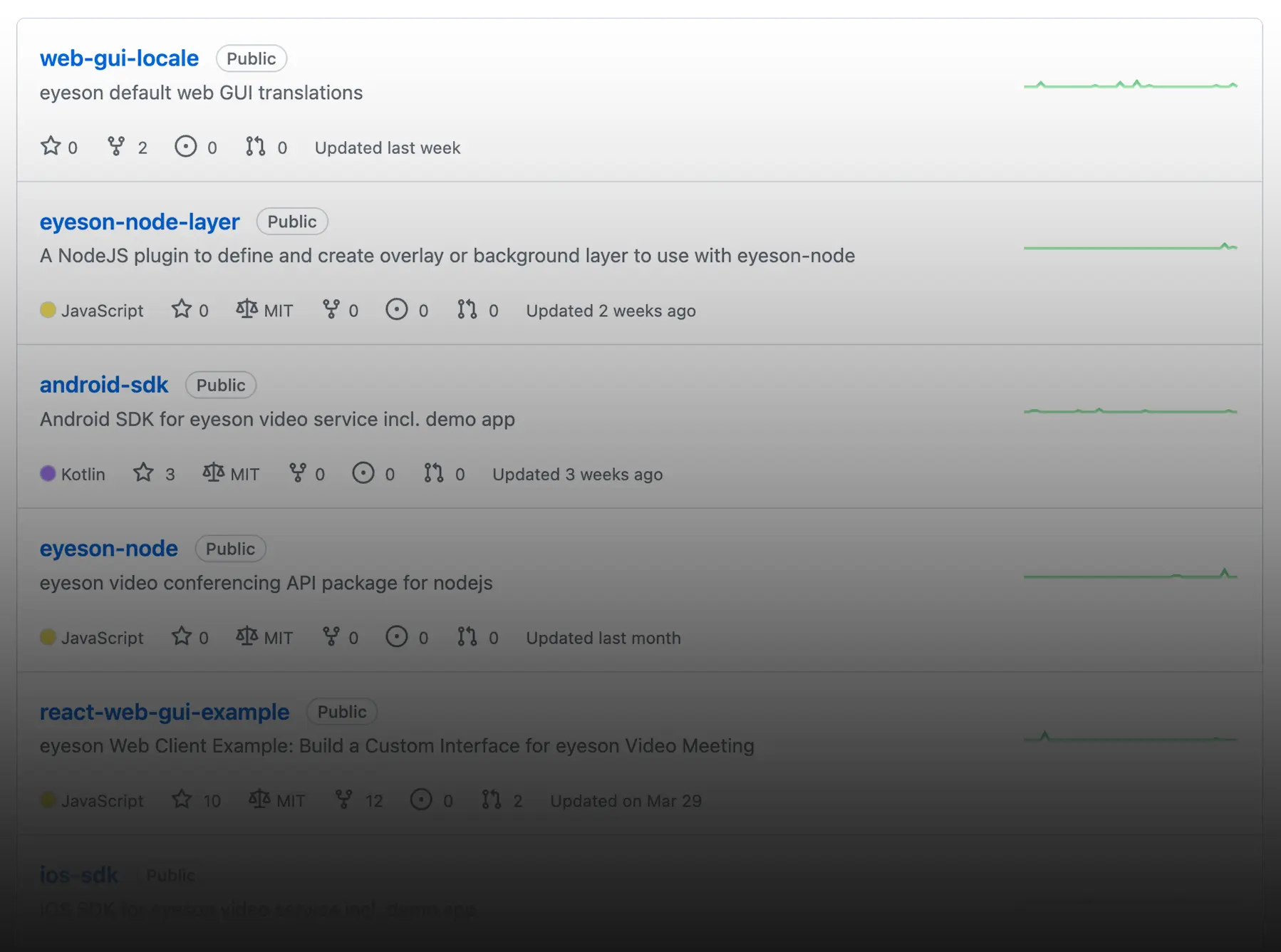
Eyeson GitHub
Find SDKs, Examples & Library Imprementations
github-eyeson
Tech Blog
News, Tips & Tricks
Our developers post regularly to provide helpful info.
api key

Get your free API key
and start building your own solutions.